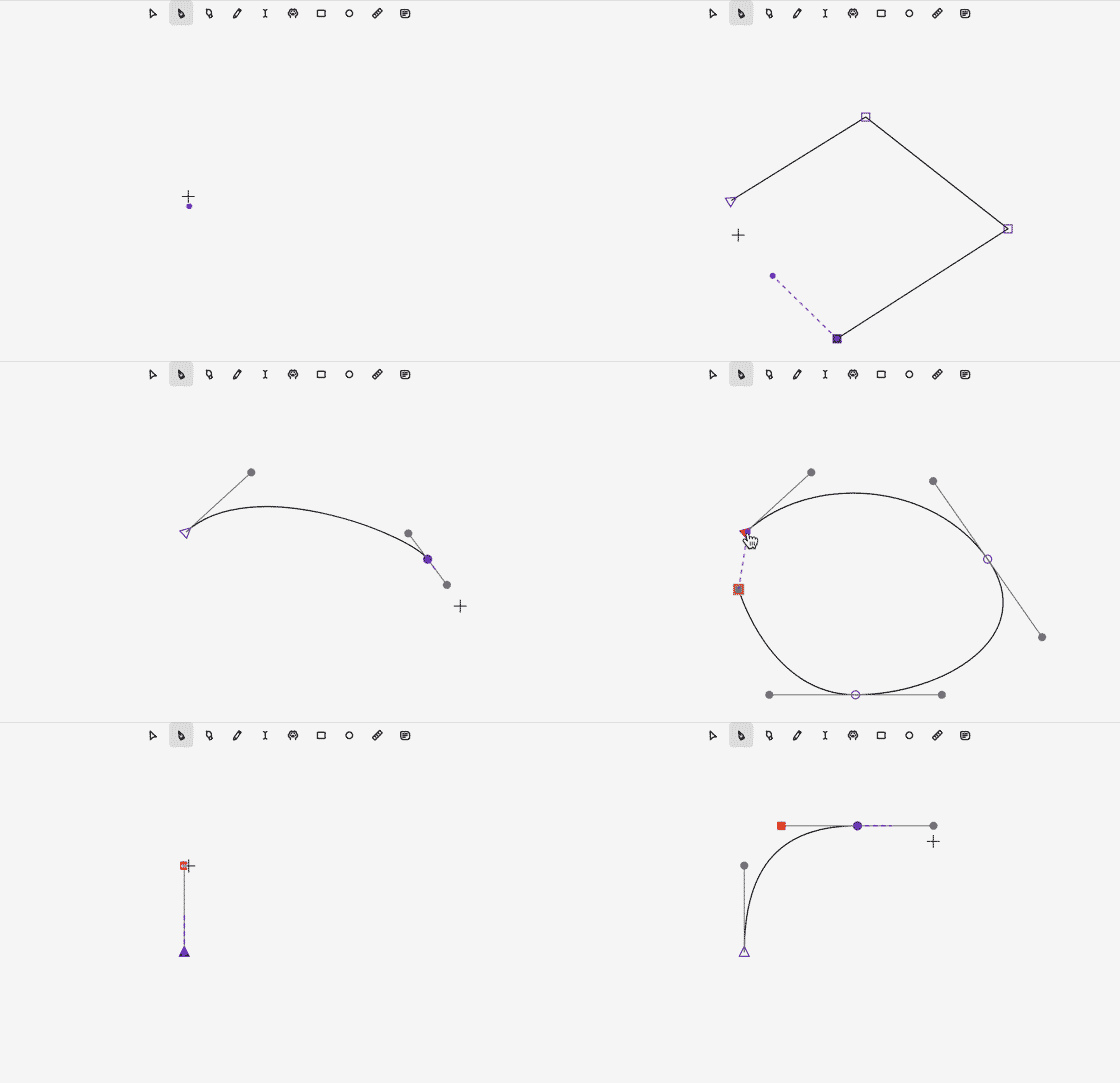
Pen tool (P) Click on empty space to start a new path. A dashed "rubber band" shows the upcoming segment (a curve if the endpoint has a handle). Drag will pulls hadles out of new point and makes it smooth. To close the path just click on first point.
Pen tool
Click on empty space. Starts a new path with its first point; further clicks append points Click, then drag. Pulls symmetric handles out of the new point and makes it smooth Alt while dragging. Breaks handle symmetry: the handle moves independently and the point becomes a corner Shift while dragging a handle. Locks the handle to horizontal or vertical
Shift while clicking empty space. Places the point at a 45° multiple from the previous point Click the first point of the path. Closes the path (cursor turns into a pointer)
Click on a segment. Splits the segment with a new point (cursor shows copy); you can drag the new point immediately Click an existing point. Selects it. If it is the end of an open path, drawing continues from it; if it is the start, the path is reversed and points are added at the front
Drag an existing point. Pulls out or edits its handles Backspace / Delete. Removes the selected end of an open path and selects the neighboring point, so drawing continues Esc. Cancels the current gesture, clears selection and drawing state; nothing of the gesture stays in history
Brush tool (B)
Brush tool
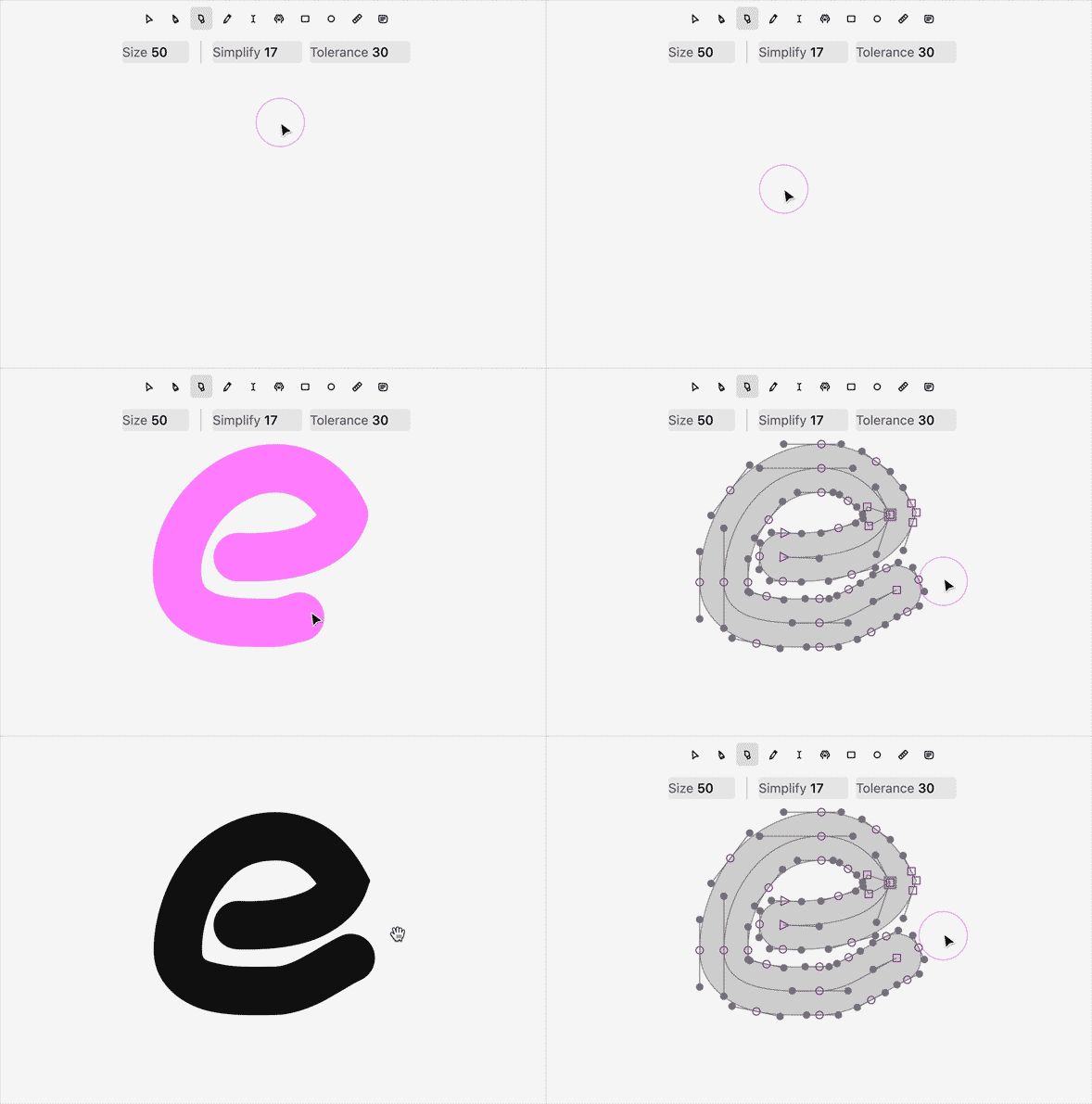
Drag to draw freehand; on release the stroke is fitted with Bézier curves.
[ and ] change brush size by 5 (by 10 with Shift).
Esc during a stroke discards it.
Rectangle (R) and Circle (L)
Rectangle and Circle tool
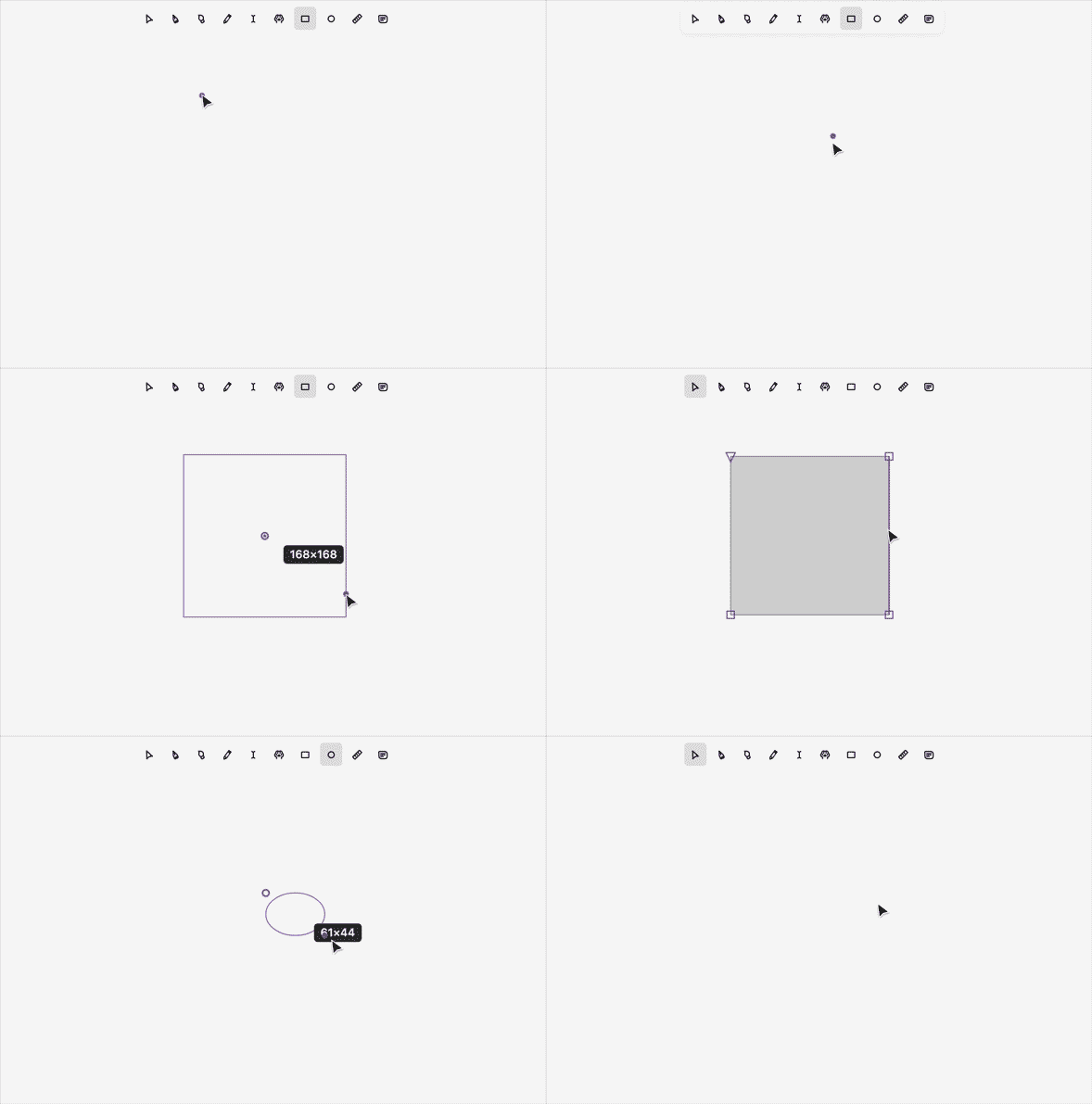
Drag to draw the shape; a plain click makes a default-size shape.
Shift makes it equal-sided (square, circle). Alt draws from the center.
Esc cancels. After the shape is created the editor returns to the Move tool.
Other ways to get a path
Paste with Cmd+V (SVG from the clipboard, copied contours).
Duplicate with Cmd+D.
Copy while dragging with Alt (see section 3).
Selecting (Move tool, V)
Selection
Click a point | Selects it Click a straight segment | Selects both of its points Click a curve | Selects the curve's points (only if you did not drag) Shift+click | Adds to or removes from the selection; clicking a selected item removes it
Drag on empty space | Marquee selection Shift+drag a marquee | Adds the marquee to the current selection
Double-click a segment | Selects all points of that path Shift+click a curve | Adds that curve's points to the selection
Drag a curve whose points are all selected, together with other such curves | Pulls all of those curves at once Cmd+A | Selects everything in the active context Tab / Shift+Tab | Cycles through elements forward / backward Esc | Clears the selection; with nothing selected, goes up one level
Moving and transforming
Dragging the selection
Moving
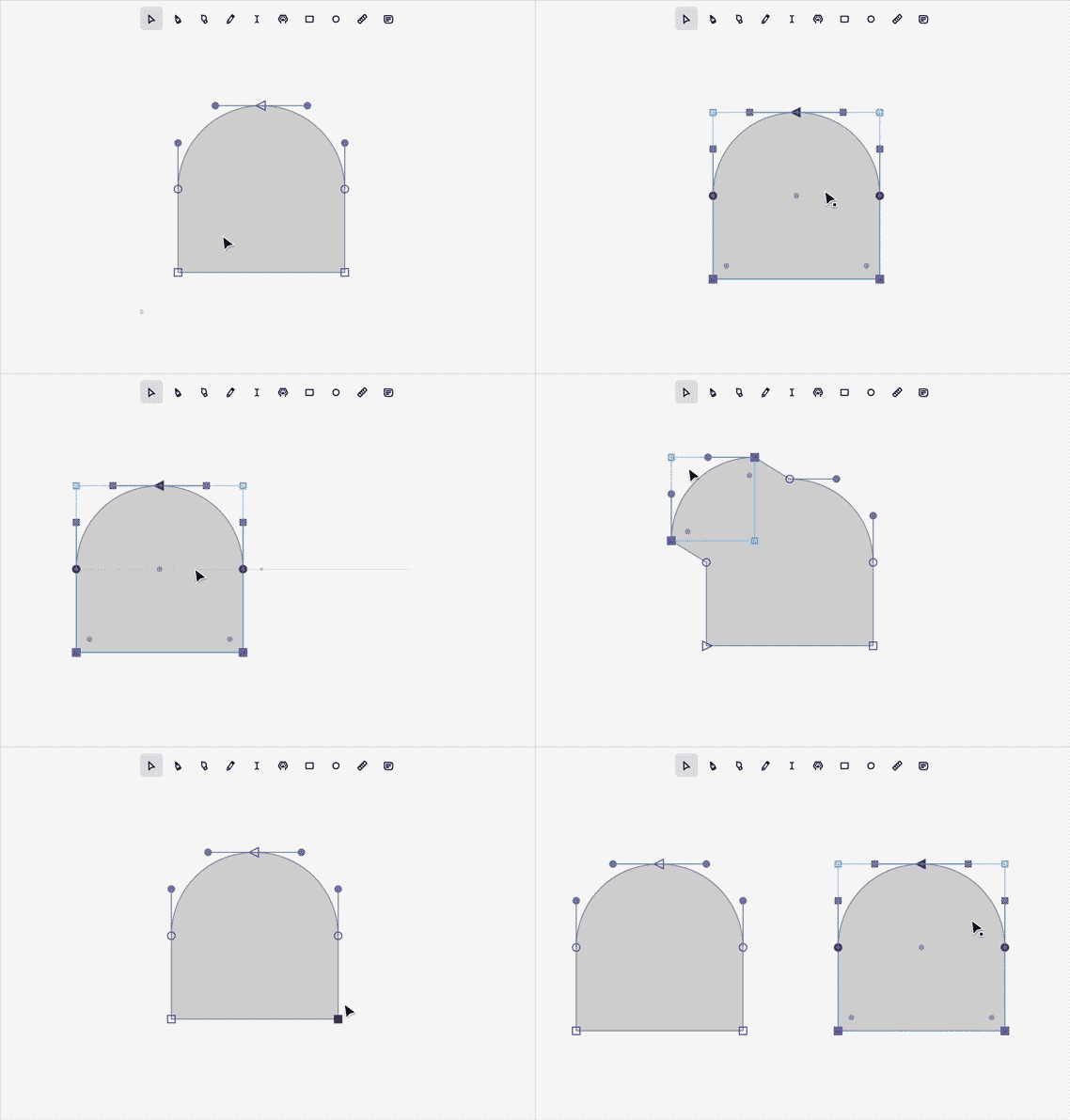
Drag the selection | Moves it (3 px threshold before it starts) Shift while dragging | Locks movement to 45° steps; not applied when only handles are selected Alt while dragging | Drags a copy; the original stays in place Cmd while dragging selected points or segments | Extrudes a new piece of the contour; if there is nothing to extrude, Cmd enables drop-into-another-container mode
Smart snapping | Snaps to other points, segment midpoints, anchors, bounds and components; Cmd inverts it Esc | Cancels the drag and restores the previous state
Transform frame around the selection
Transform
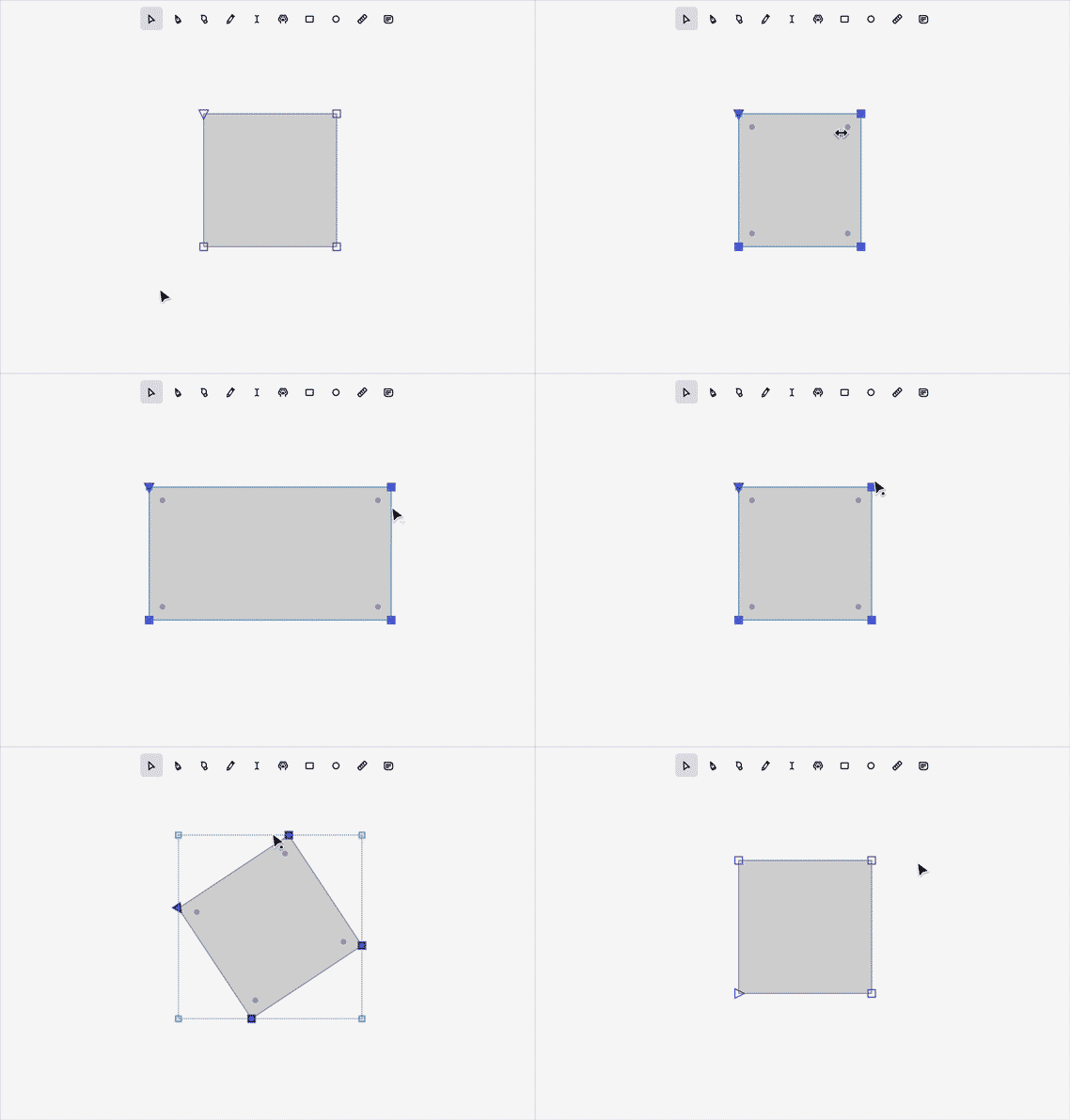
Corners and sides scale. Shift keeps proportions, Alt scales from the center. Values of −1, 1 and 0 snap.
Zone just outside a corner rotates. Shift steps by 45°.
Arrow keys
Arrows | 1 unit Shift+Arrows | 10 units Cmd+Shift+Arrows | 100 units
A closed contour that is mirrored as a whole is reversed in the same history step so it keeps its direction. Text frames cannot be mirrored.
Editing points and segments
Editing
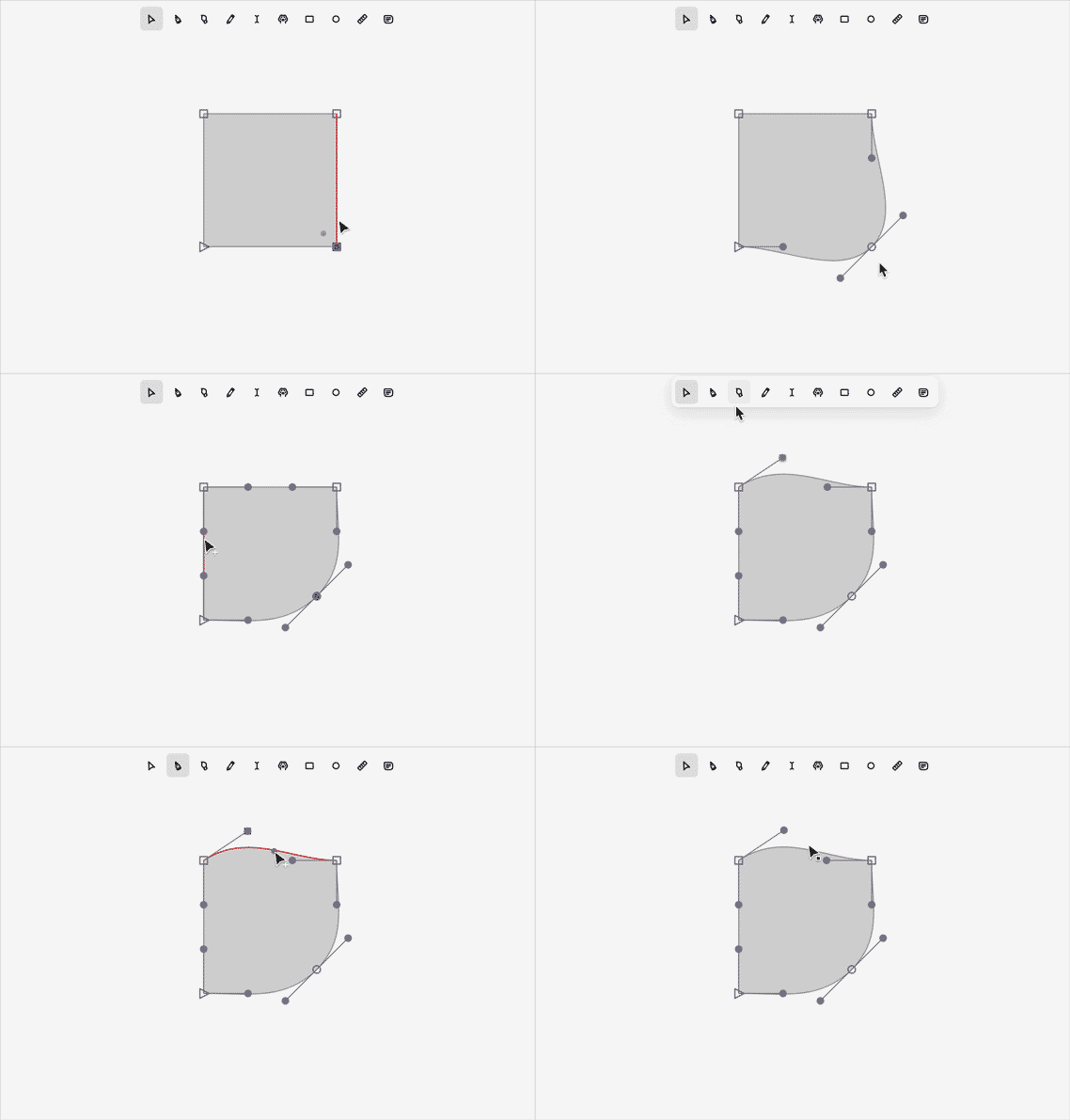
Toggle smooth / corner | Double-click a point, or context menu: Make Smooth / Make Corner | Handles are recalculated Convert line to curve | Alt+click a straight segment, or context menu: Convert Line to Curve | Alt+Shift+click does the same while adding to the selection Split a segment | Pen click on the segment, or context menu: Split Segment Here | Splits at the click point Delete a point or handle | Backspace / Delete, or context menu: Delete Anchor Point / Delete Handle | Add extrema | Context menu or Properties panel: Add Extrema | Adds points at horizontal and vertical extremes, required for a well-formed font outline Set start point | Context menu: Set Start Point | Makes the selected point the first of its contour; matters for interpolation between masters
Whole-path operations
Move-tool keys act on the paths that the selected points belong to.
Close and Reverse path
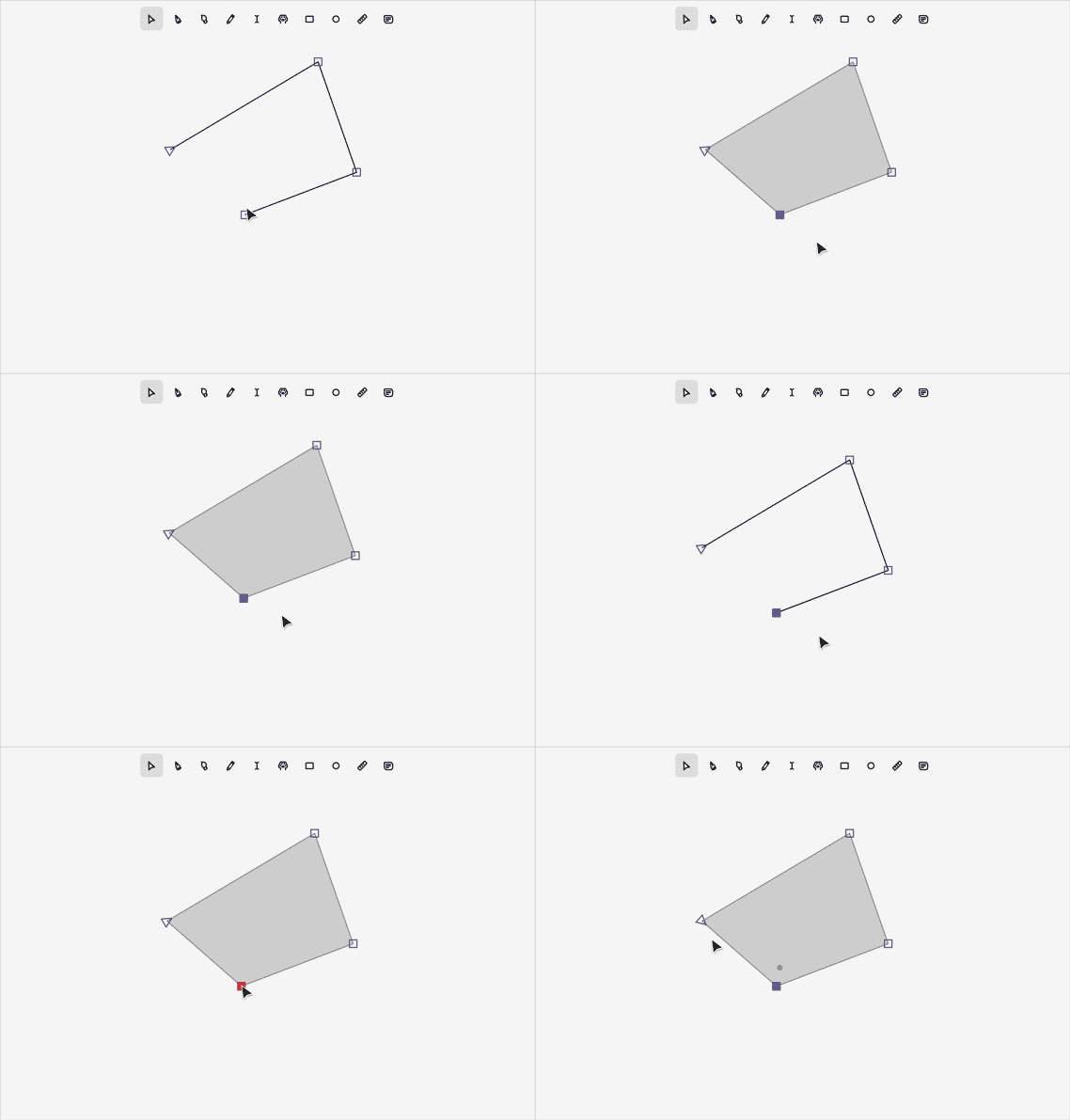
C | Toggle the path between closed and open X | Reverse the path direction Close Path (menu or panel) | Closes open paths only Reverse Path Direction (menu) or Reverse (panel) | Reverses direction Simplify Path (menu) or Simplify (panel) | Reduces points; works on a single path
Fillet (corner rounding)
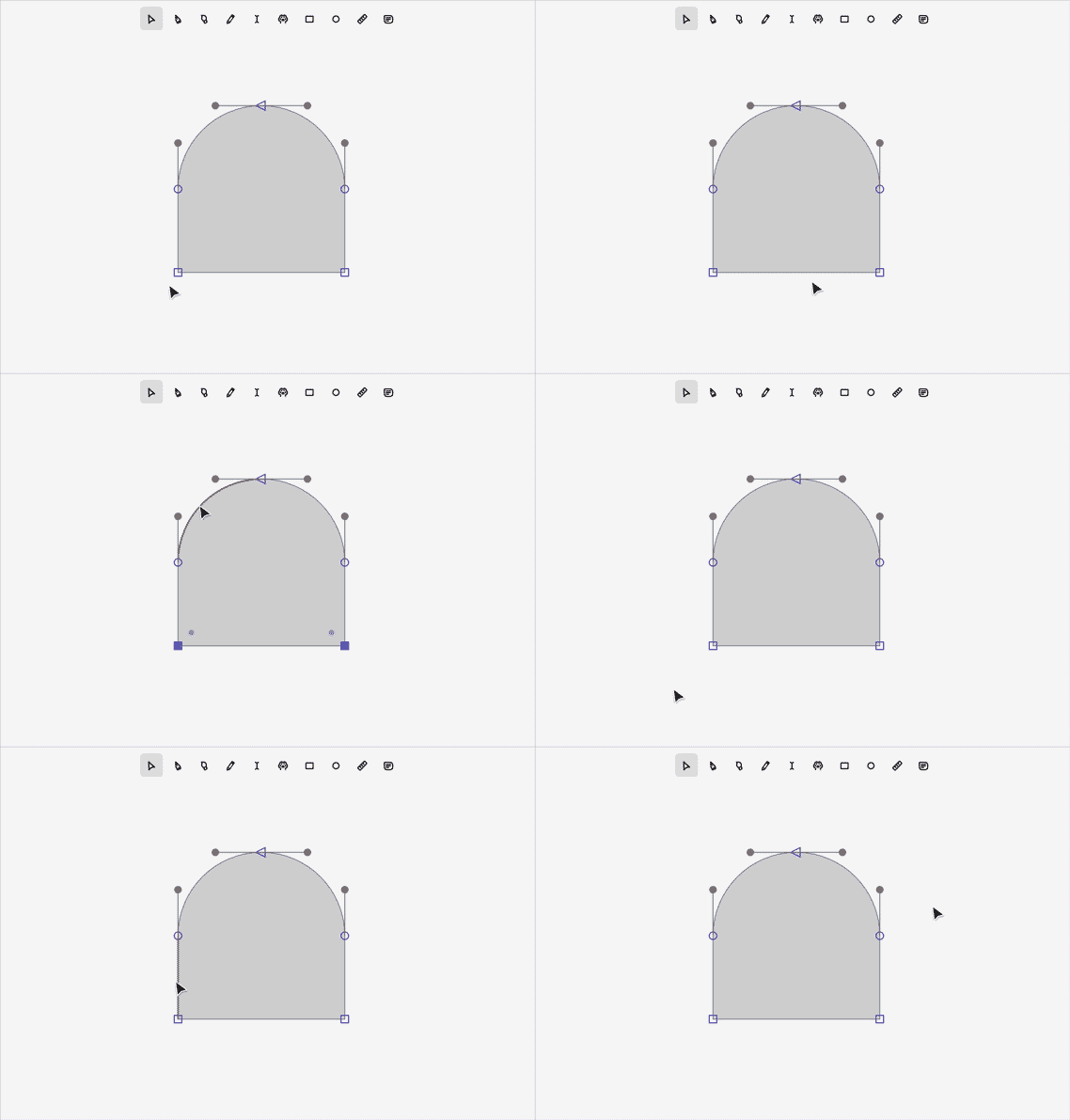
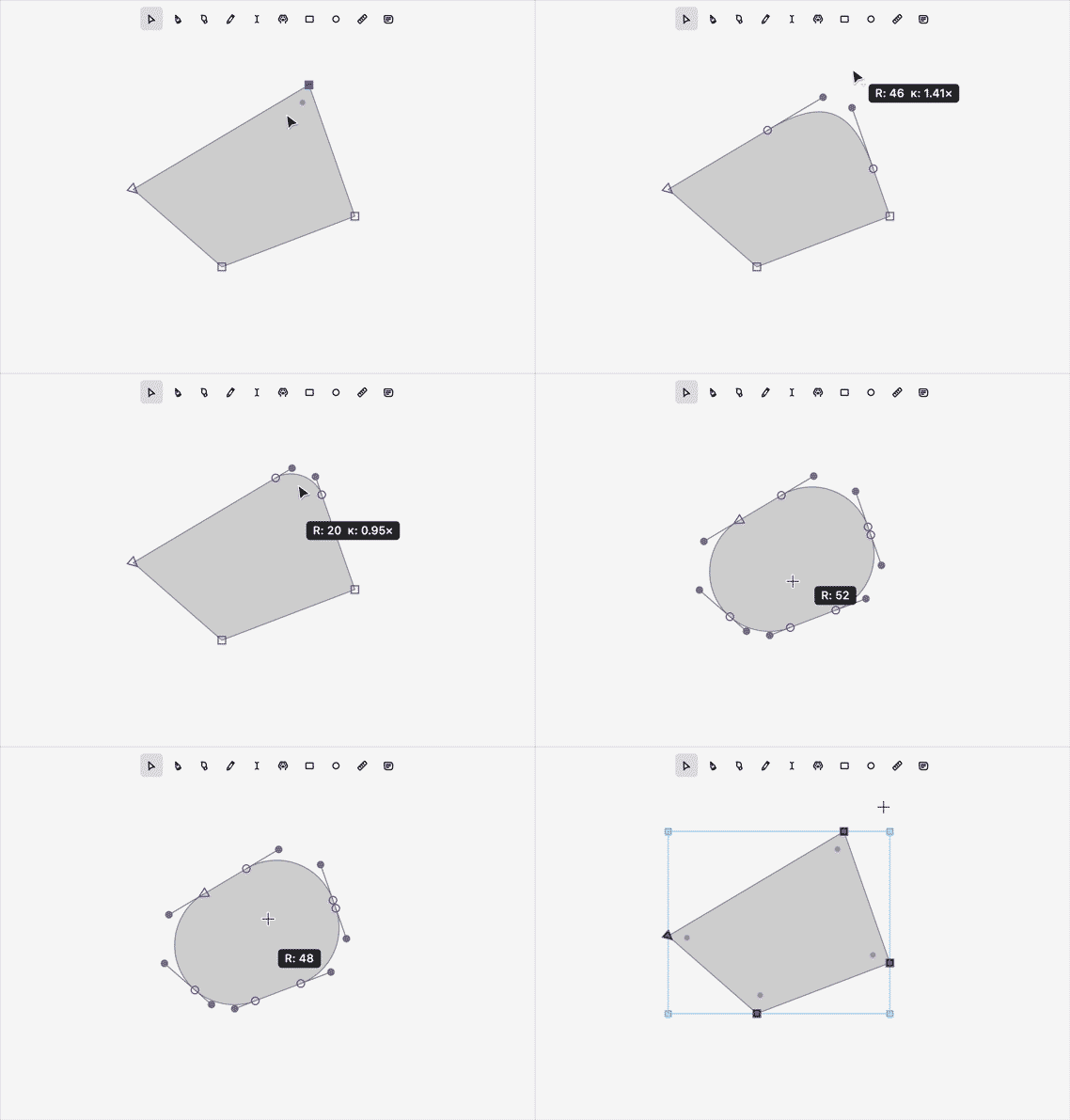
Select corner points (smooth points have no fillet handle). A handle appears on the bisector of each corner.
Fillet
Drag the handle | Changes the radius; Shift steps the radius by 10 Hold Alt while dragging | Switches to the curvature (kappa) setting; Shift steps by 0.05; the value 1 snaps Hold Cmd while dragging | Each corner gets its own independent radius Select all four nodes of a finished fillet | A handle at the circle's center lets you re-edit it or fold it back into a corner
The radius is limited by the length of the neighboring segments. Without Cmd the limit is shared by all corners; with Cmd each corner has its own.
Stroke
Stroke
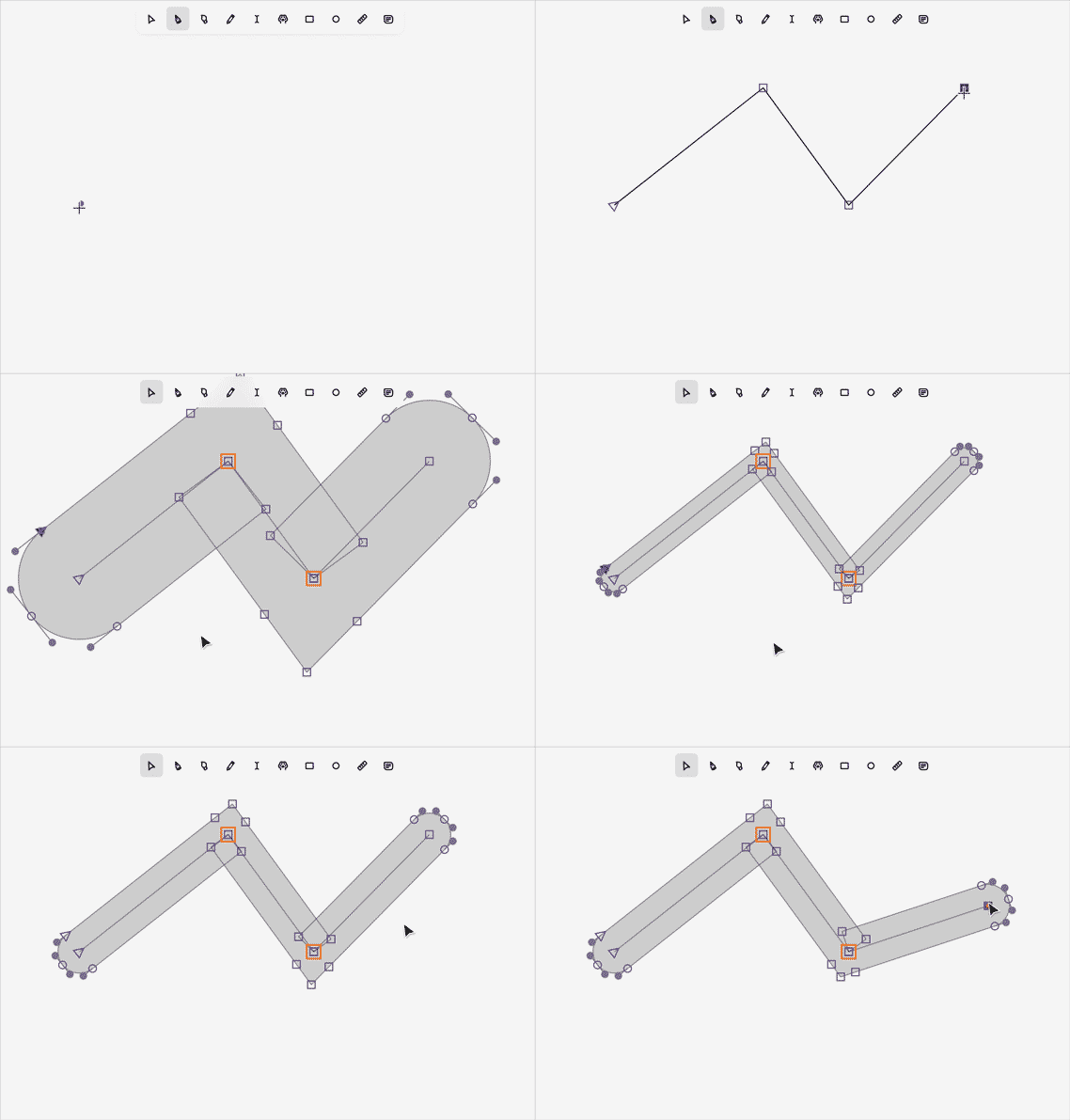
Shift+X | Toggle stroke on the selected paths [ / ] | Change stroke width by 2 (by 10 with Shift) Properties → Stroke | Stroke checkbox, Width field, caps (Round, Butt, Square), Expand button Expand Stroke (menu or panel) | Converts the stroke into plain contours
Moving a point of a stroke's outline expands the stroke automatically into plain contours; otherwise the edit would be lost at the next change of the centerline.
Boolean operations
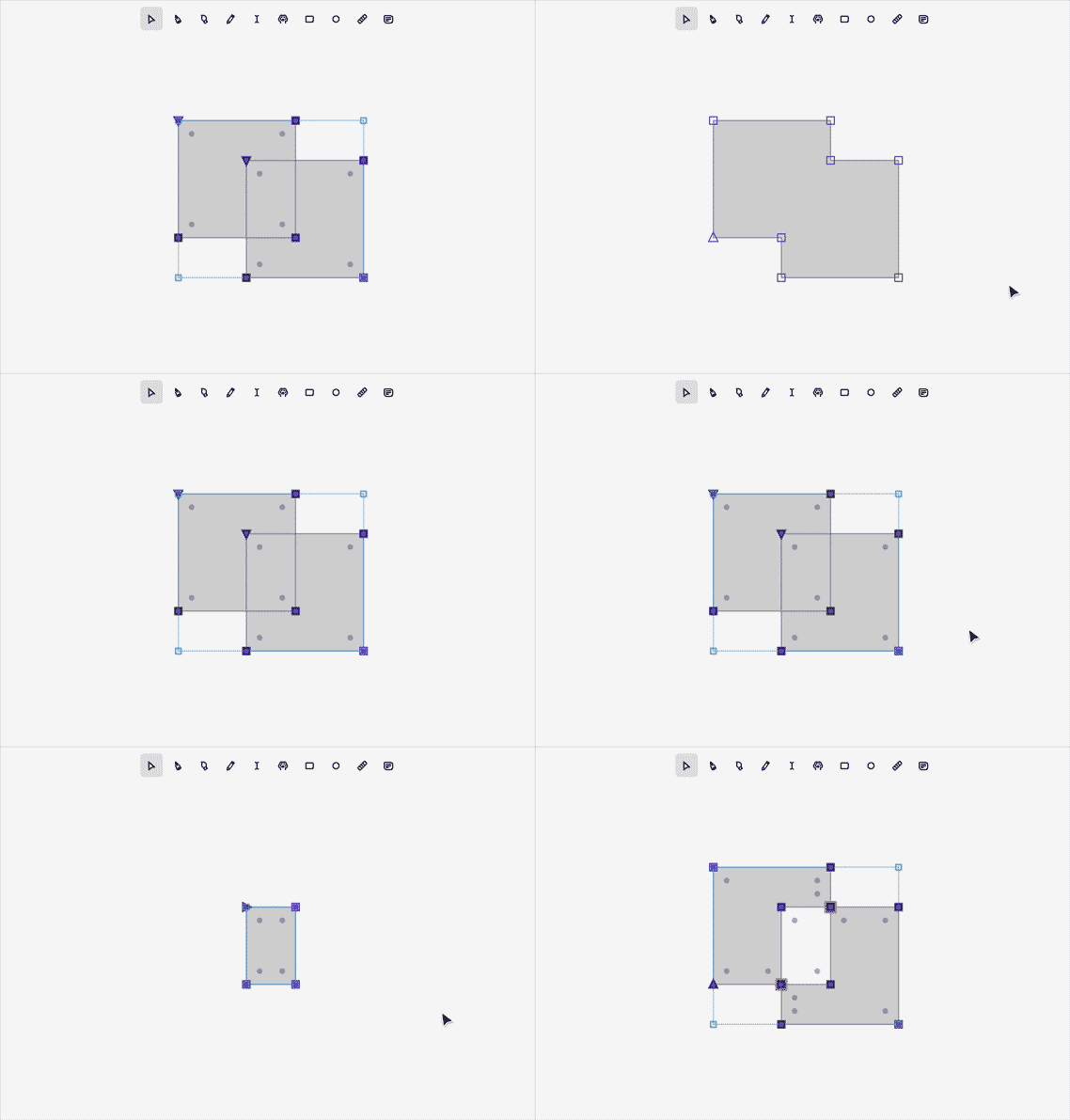
Select points or segments of at least two contours (Simplify needs only one).
Subtract cuts the other contours with the topmost selected contour.
Open contours and stroke contours are left untouched; closed contours are processed.
Result orientation follows the font convention: outer contours counterclockwise, holes clockwise.
An error (for example, PathKit failing) is shown as a toast, and nothing changes.
Properties panel and context menu
Context menu (right-click)
On a point: Make Smooth / Make Corner, Set Start Point, Expand Stroke (stroked paths), Delete Anchor Point or Delete Handle.
On a segment: Convert Line to Curve, Expand Stroke, Split Segment Here.
With a selection: Flip Horizontal, Flip Vertical, Rotate 90° clockwise / counterclockwise.
With a path selected: Close Path (open paths), Reverse Path Direction, Add Extrema, Simplify Path; with two or more paths, Union, Subtract, Intersect and Exclude.
Always: Add note, Undo, Redo, Select All, Show / Hide Metrics.
Properties panel (Alt+P)
Transform: Position X / Y, Size W / H with anchor picker and proportion lock, Rotation, Rotate 90°, Flip H / Flip V, Reset transform (components).
Path Actions: Union, Subtract, Intersect, Exclude (two or more paths); Simplify, Reverse, Extrema, and Close (open paths).
Stroke: toggle, width, caps, Expand.
Each field change is one history entry, committed on Enter or blur.
General shortcuts and navigation
Cmd+Z / Cmd+Shift+Z | Undo / Redo Cmd+C / Cmd+X / Cmd+V | Copy / Cut / Paste Cmd+D | Duplicate Cmd+= / Cmd+- / Cmd+0 | Zoom in / out / actual size Cmd+wheel | Zoom at the pointer (plain wheel pans) Space (hold) | Temporary Hand tool; releasing returns to the previous tool Enter | Enter the selected text or glyph Cmd+Enter / Shift+Enter | Go up one level Cmd+1 … Cmd+9 | Switch master Shift+M | Show / hide metrics Shift+S | Show / hide sketches (glyph mode) D | Toggle debug HUD
Tool hotkeys
V | Move P | Pen B | Brush S | Sketch T | Text H | Hand R | Rectangle L | Circle U | Measure N | Note